ACSEC XI Registration Guide

How to Register

Complete the registration form, make the payment, receive your secure team email, upload every delegate photograph, and resolve any category-capacity issue if required.

Registration Process

Follow the five steps below. The screenshots display test records; your team name, team ID, delegate details and secure links will be different.

Never forward a secure team link outside your delegation.
Start here

Complete the registration form
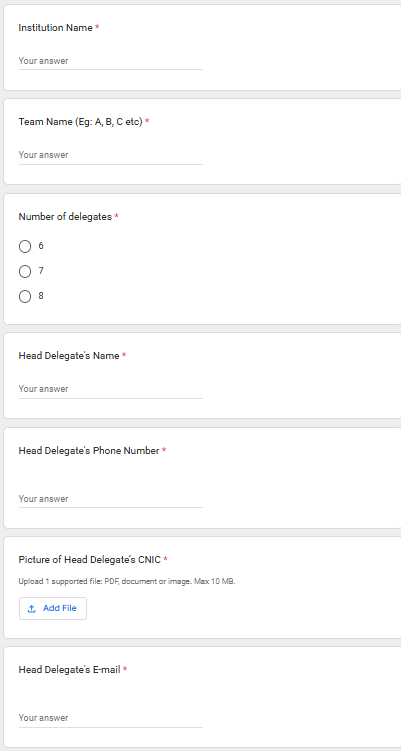
Registration form fields for institution, team and all delegates

Enter the institution and team names, choose the number of delegates, provide the required information for all delegates, and select your categories.

Institution and team name Team size of 6, 7 or 8 delegates Required information for all delegates CNIC image or PDF for all delegates Select your categories
Payment

Complete the payment

Complete the payment after submitting your registration form. Once the payment is verified, your team will receive portal confirmation and the secure team email.

  • Cash: Senior School Accounts Office, Aitchison College.
  • Bank draft: Submit in person or send by courier.
  • Bank transfer: Submit the payee’s bank-account details and proof of the completed transaction.

Registration deadline: 15 October 2026

After payment verification

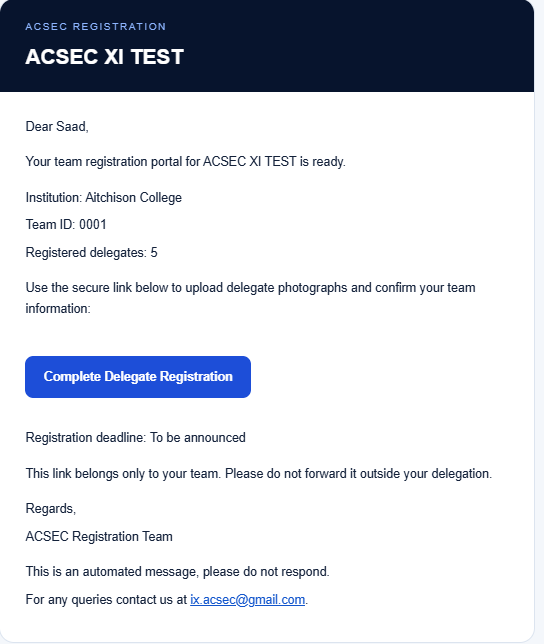
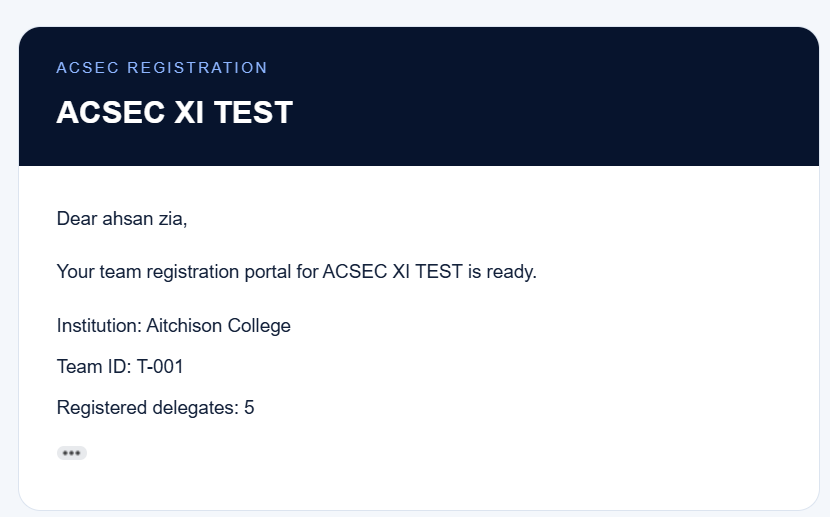
Receive the secure team email

Example registration confirmation email showing a team ID and delegate count
Example email containing the Complete Delegate Registration button

After the payment is verified, the head delegate receives portal confirmation containing the team ID and a private link to complete delegate registration.

Do not forward the secure link. It belongs only to the registered team.
Delegate portal

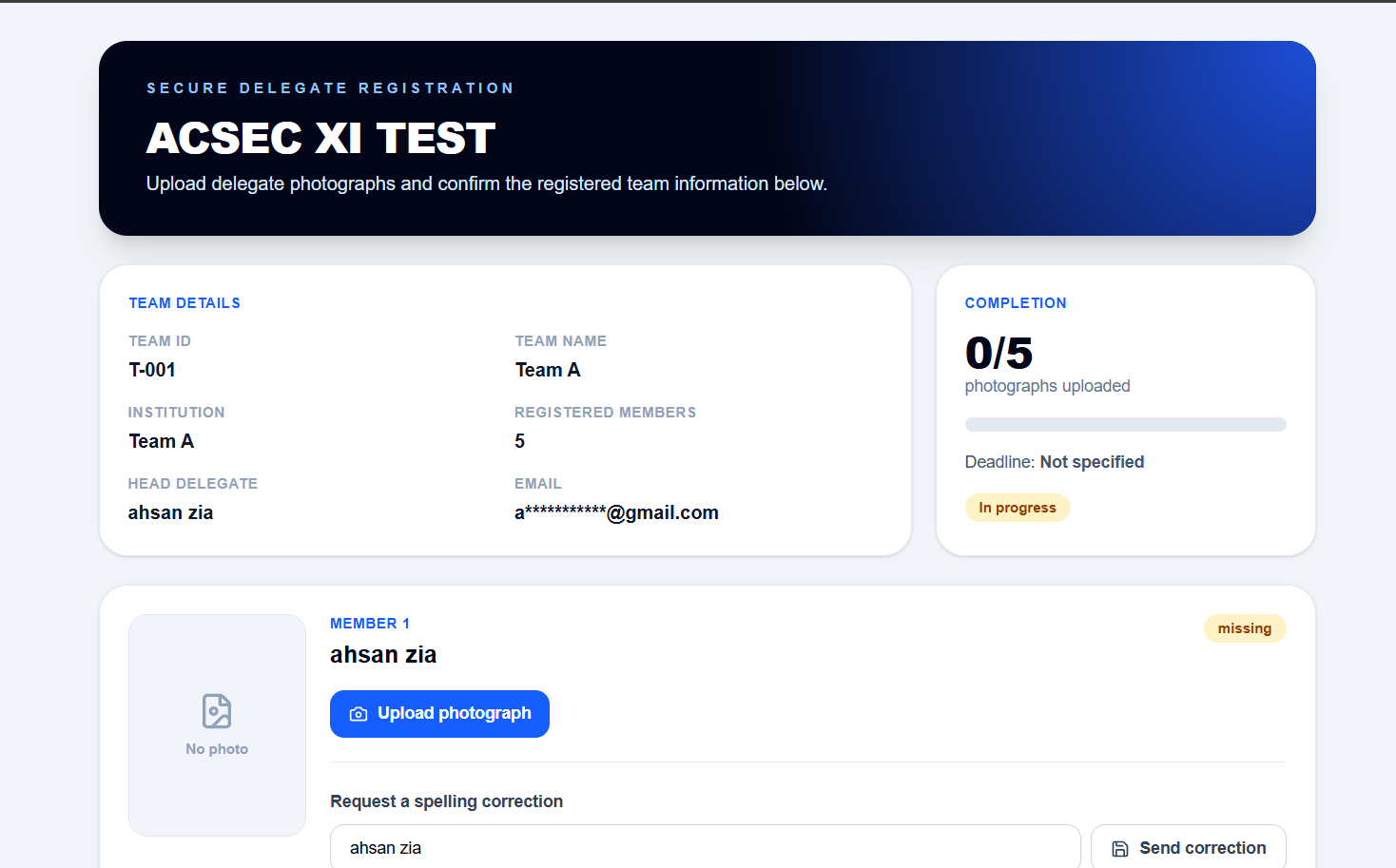
Upload photographs and verify names

Secure delegate portal used to upload photographs and request spelling corrections

Open the secure portal and upload a photograph for every delegate. Follow the example, dimensions and file requirements displayed inside the portal.

Upload every delegate photograph Follow the supplied example and dimensions Check the completion counter Request a spelling correction where necessary
Only when required

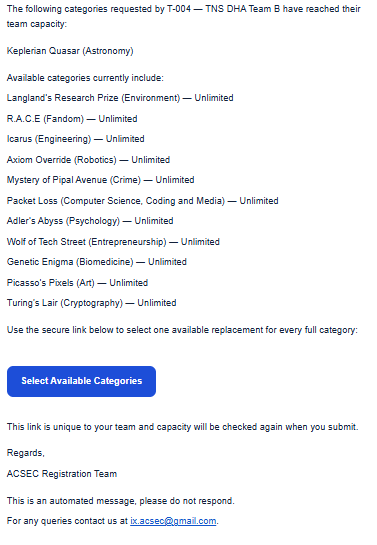
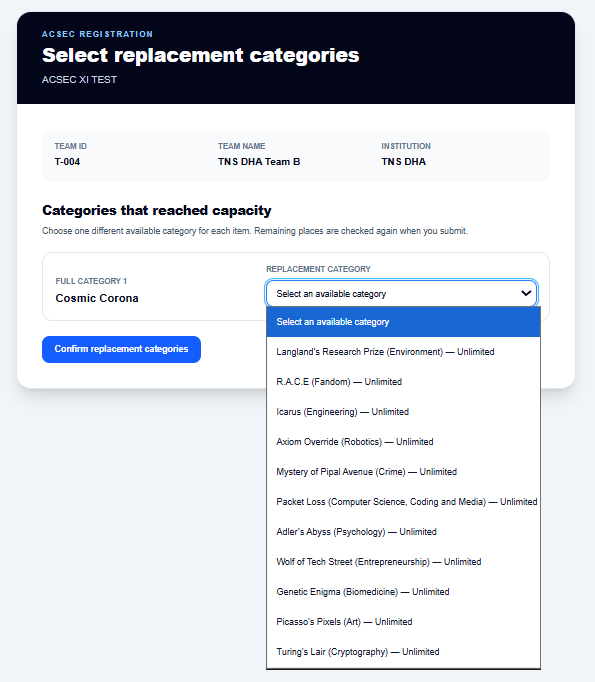
Replace a category that reached capacity

Example email explaining that a selected category has reached capacity
Replacement-category portal showing the remaining available categories

If one of your selected categories has already reached capacity, the head delegate receives a separate secure email. Open the link, choose an available replacement category and confirm the change.

Capacity is checked again when the replacement is submitted, so complete this step promptly.